Stop Losing What You Copy on Mac (Without Another App Switching Session)
Your Mac has a one-item clipboard.
You copy a tracking number. Then you copy the customer's email address. Then you need the tracking number again and it's gone. Or you copy a paragraph you meant to reuse, switch windows to check something, and the next copy wipes it. By the end of the day you have re-copied the same three things half a dozen times and still lost the one you actually wanted.
Nobody files a complaint about this. It never gets bad enough to feel like a real problem, so most people just absorb it. So: first, what you can do about it with macOS on its own. Then what to do if you would rather stop repeating the same recovery steps every day.
Why the standard clipboard feels so limited
macOS keeps the last thing you copied. That's it. Everything before it is gone the moment you copy something new. There is no history to scroll back through, no way to pin the text you paste twenty times a week, and no route back to a link, image, or file path you had thirty seconds ago.
The cost turns up in small ways:
- Copying the same few snippets over and over
- Digging through browser history or old messages for a link you already had once
- Opening Finder or Spotlight to get to a folder you use every single day
- Losing an image or a file reference the second you copy something else
Some of this you can work around with what is already on the machine. The workarounds take their own time and attention.
A decent free approach with what you already have
You can take the edge off without installing anything:
- If you move between Apple devices, Universal Clipboard carries the most recent item across them. On the Mac itself you still have that one item and nothing behind it.
- If you already run something like Keyboard Maestro, build text expansions for the phrases you retype constantly.
- Keep a scratch file or a Notes window open and paste anything important into it before the next copy overwrites it.
- Pin the apps and folders you open most often to the Dock or the Finder sidebar so you are not searching for them.
These habits genuinely help. They also depend on you remembering to use them, and they still pull you out of whatever you were doing. The moment you want something from three copies ago, or an image you copied earlier, you are back to hunting for it.
A faster way: clipboard history, snippets and shortcuts in one place
What people need here is not complicated:
- A short history of recent copies, images and files included
- Somewhere to keep the pieces they reuse
- Fast access to the apps, folders and sites they open constantly
- All of it reachable without leaving the window they are already in
WhimPop is built around exactly that. Hold down the right mouse button, or press and hold with two fingers on a trackpad, and a panel appears under your cursor. A normal short right-click still gives you the usual context menu, so nothing about everyday clicking changes.
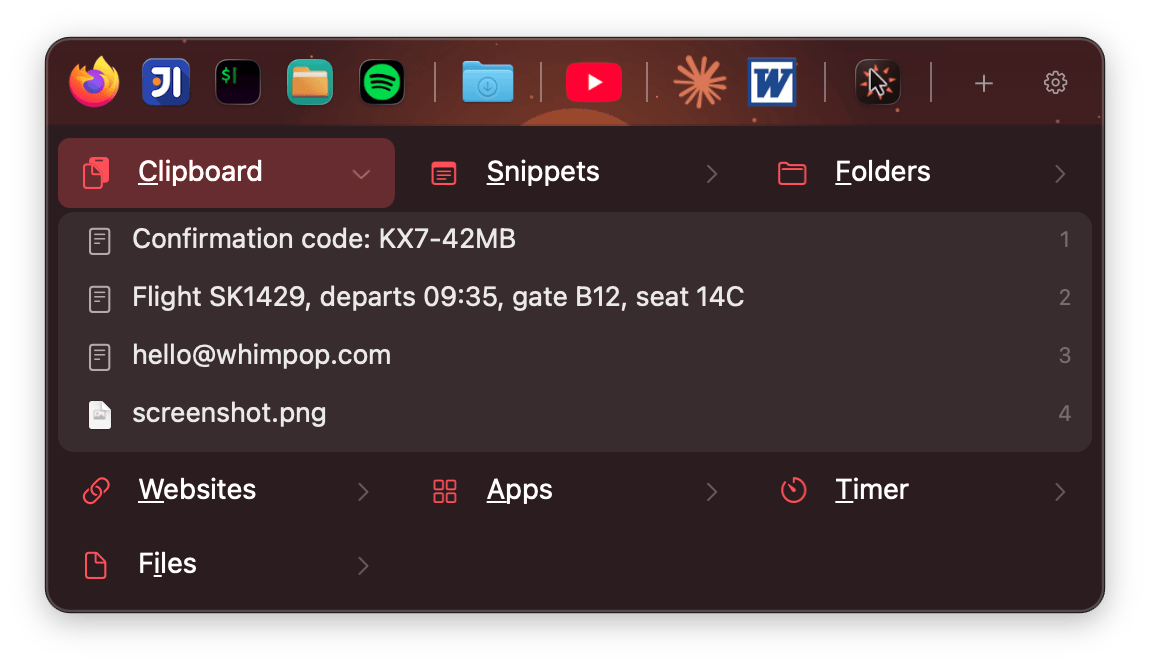
From the panel you get:
- Clipboard history that stays on your Mac. Text, images and file copies are all kept, and anything arriving from a password manager is skipped automatically.
- Any entry worth keeping can be saved as a reusable snippet.
- A favorites rail for apps, folders and website shortcuts, each showing its real icon.
- A fuzzy search, called Actions, that looks across clipboard entries, snippets and favorites at once.
- A timer with presets, if you work in blocks.
- Full keyboard control, if you would rather not reach for the mouse at all.
Pasting does not steal focus. The text or image lands in the app you were already working in. Hold the Option key while you click and the panel stays open, so you can paste three things in a row without opening it again.
Everything is local, so your clipboard history never leaves the machine. The only network traffic is the update check and fetching favicons for website shortcuts you create, which is written out in full in the privacy policy.
Other situations where the same panel helps
The same short hold covers a few other daily friction points:
- Design and writing work. Images sit in the history alongside text, so you can hover to preview one and paste it without switching tools.
- Support and sales. Common replies live as snippets, and order IDs or tracking numbers come straight out of history.
- Keyboard-heavy days. Open the panel with a global shortcut, jump between sections with mnemonic letters, or press Space and type a few letters to find anything.
- Quick launches. Favorite apps and project folders sit one click away instead of a round trip through Spotlight.
You can rearrange the sections, change how many columns there are, apply a theme, or put a gradient or an image behind the favorites rail. The point is that it stays out of the way until you ask for it.
Small habits that keep the benefit
A tool only helps if the habit sticks:
- When you copy something you know you will want again, open the panel once and save it as a snippet.
- Put the three or four apps and folders you genuinely open every day on the favorites rail.
- Use the timer presets if you already work in focused blocks. That is one less app to open.
- If you live on the keyboard, set a global shortcut and mostly ignore the mouse trigger.
Closing
None of this is about building a perfect system. It is about cutting down how often you think "I just had that" and then go looking for it. A couple of seconds of hold and paste, instead of half a minute of reconstruction.
If that sounds like your afternoon, try the free trial of WhimPop. Clipboard history, snippets and the shortcuts you reach for most, all of it at the cursor, without another window to manage.
Fully featured for the whole trial. One-time purchase after that, no subscription.